
Practice Affinity Designer on YouTube
Vector tutorials reward repetition—nodes, booleans, and artboards make more sense on the second pass. YouC keeps the pass beside the player.
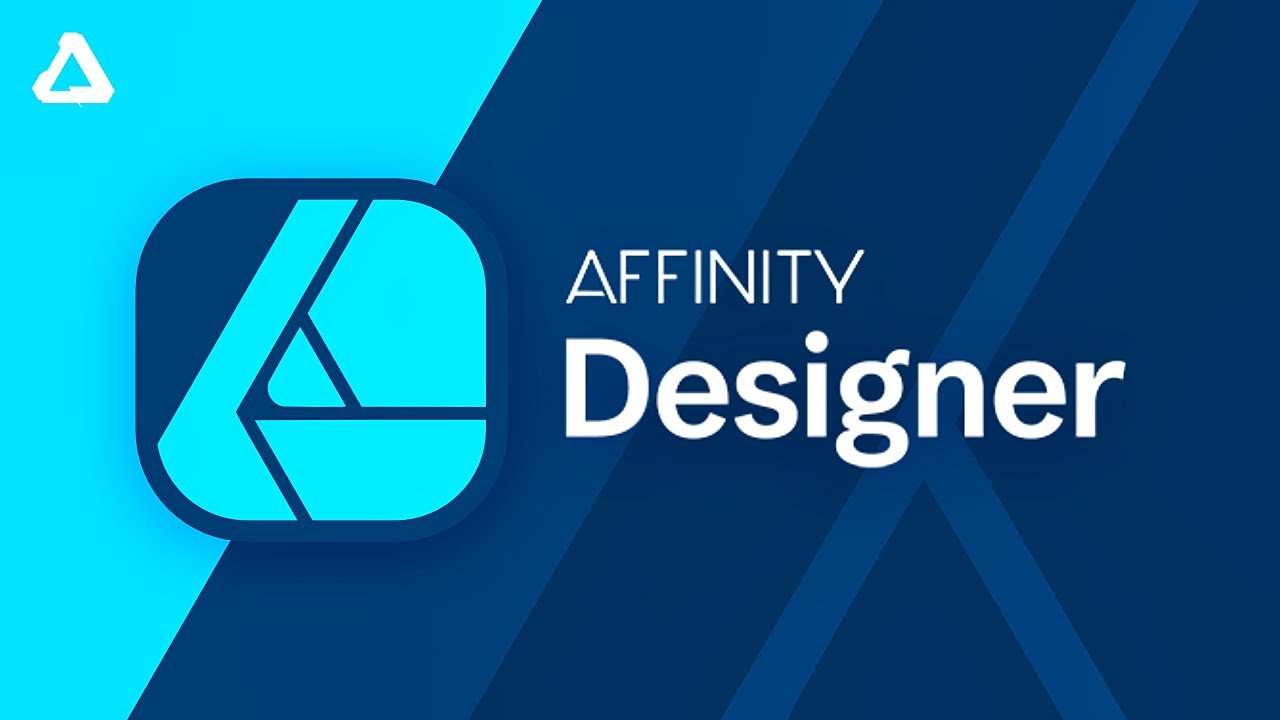
Design Made Simple — Affinity Designer complete beginner course
Replay the stretch where the curve finally obeyed. Capture that frame with a short voice note so your next session starts from proof, not from memory.
Loops · Timeline notes · Hear what you meant at the frame
Vector learning is repetition
Curves sink in when you return. YouC makes the return link honest—same second, same note.
- YouTube shows motion; Affinity is motion. The learning style already matches.
- Loops respect how hands learn—repeat the awkward stretch until it is boring.
- Installs keep technique and rationale attached to the frame.
- Voice captures tradeoffs the video does not label in writing.
- Playback revives judgement, not just technique.
What you use while you design along
Last 30 sec loop
Perfect for pen explanations, node edits, and boolean cleanups.
Timestamped installs
Save the breakthrough frame when the path finally stabilizes.
Voice notes
Describe stroke and fill intent in your own words for later review.
Playback
Hear your note with the clip before you open a blank artboard.
Copy transcript
Grab shortcut callouts or export guidance verbatim.
Return to exact moments
Pick up a long course without losing which artboard you were mirroring.
Second walkthrough: fuller beginner tour
When you want more range, follow a longer structured course. Capture vocabulary the first time it lands—personas, symbols, and export presets.
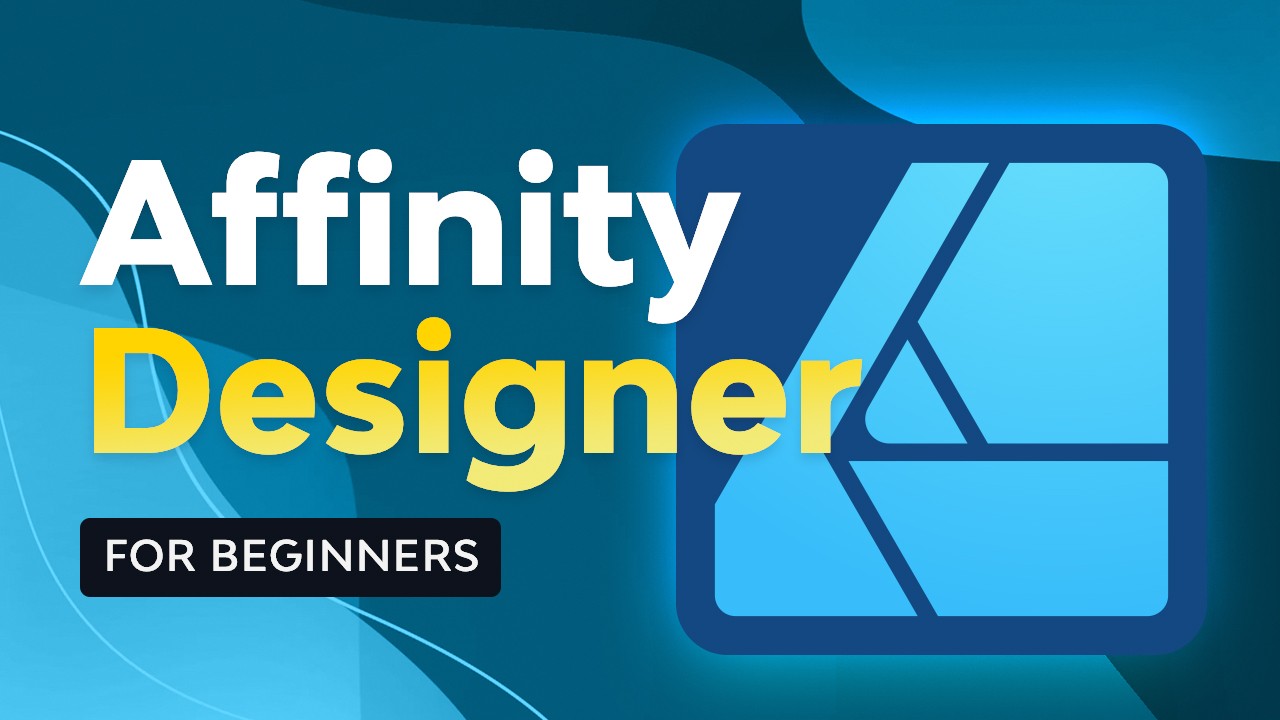
Envato Tuts+ beginner course—capture principles, not every shortcut.
Practice with this videoSuggested practice flow
Practice → repetition → return → improvement—same cadence as music or code.
Keep Affinity tutorials usable after the tab closes
YouTube is where you watch. YouCapt is what you keep — timestamped context you can return to and build from. Most designers who pick up Affinity already trust YouTube for software motion. The hard part is not the tutorial—it is returning to the ten seconds where the pen tool or boolean cleanup finally made sense without scrubbing a long file. You pause, redraw in your document, drift, and lose the thread. YouC treats the player like a practice bench. Loop the segment where nodes click. When your paths match the instructor’s example, capture a voice install that names what changed—corner tool, fill mode, or a compound shape fix. That note belongs to the timestamp. This page is for people who learn by mirroring real vector work. You are rehearsing motion: watch, mimic, loop the confusing gap, capture the win, return later. Transcript copy still helps when you want shortcut callouts or export settings spoken aloud. Logo, icon, and layout tutorials all benefit from the same cadence. You already learn on YouTube. YouC is the thin layer that makes return and repetition normal instead of heroic.
Figma UI practice beside YouTube · Premiere edits with the same loop habit · React layout tutorials when you ship UI in code · Capture design ideas on the timeline · Install YouC for Chrome · Block time to finish the vector pass
FAQ
- How do I practice Affinity Designer tutorials on YouTube?
- Rebuild the same shapes alongside the video, loop short stretches where the pen or boolean tools confuse you, and capture installs when your document matches the lesson.
- Can looping help with the pen tool?
- Yes—node editing is procedural. Replaying the same clip while you adjust handles builds recognition faster than one long watch.
- What should I say in a voice note?
- Name the control that changed the outcome—stroke, fill, corner, boolean, or export preset—so playback still makes sense later.
- Is this only for beginners?
- No—advanced symbol, style, and export tutorials benefit because failure modes are subtle and easy to forget.